Connect your first cloud
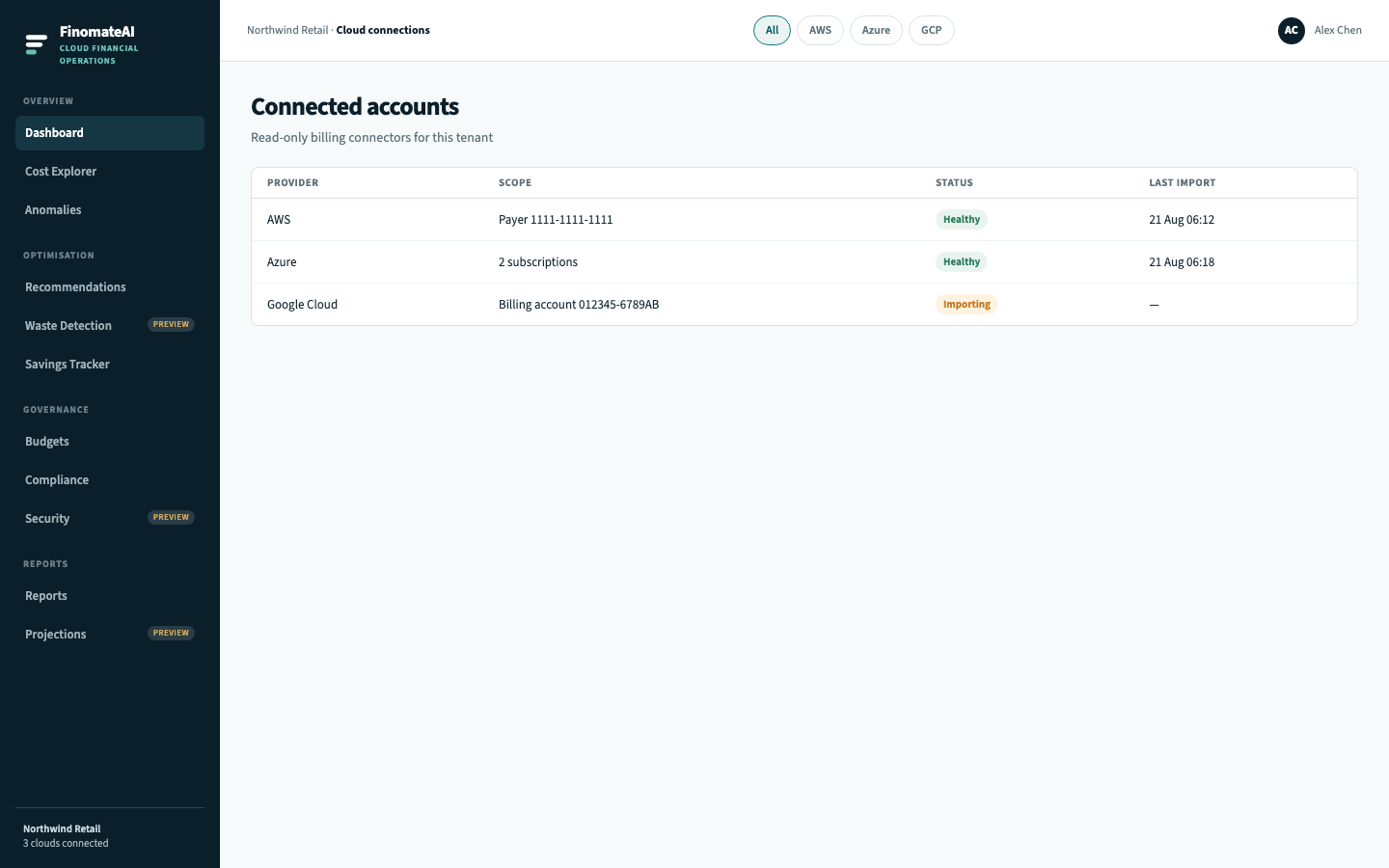
Connect Azure first so spend appears in FinomateAI. You can add AWS and Google Cloud later. Each connector is least-privilege.
Before you begin
- You have a FinomateAI tenant and a tenant_admin sign-in.
- Someone in your cloud team can create a billing export and a read-only identity.
- You have agreed the billing scope (which accounts, subscriptions or projects belong in the first connection).
Step 1: Connect Azure
Azure is the default first connection. Follow Connect Azure for the Cost Management export and Entra service principal.
Add the others when you need them:
| Provider | What FinomateAI reads | Guide |
|---|---|---|
| Azure | Cost Management export in a storage account, through a service principal | Connect Azure |
| AWS | Cost and Usage Report (or FOCUS) in S3, through a cross-account role | Connect AWS |
| Google Cloud | BigQuery billing export, through a service account | Connect Google Cloud |
Step 2: Complete onboarding
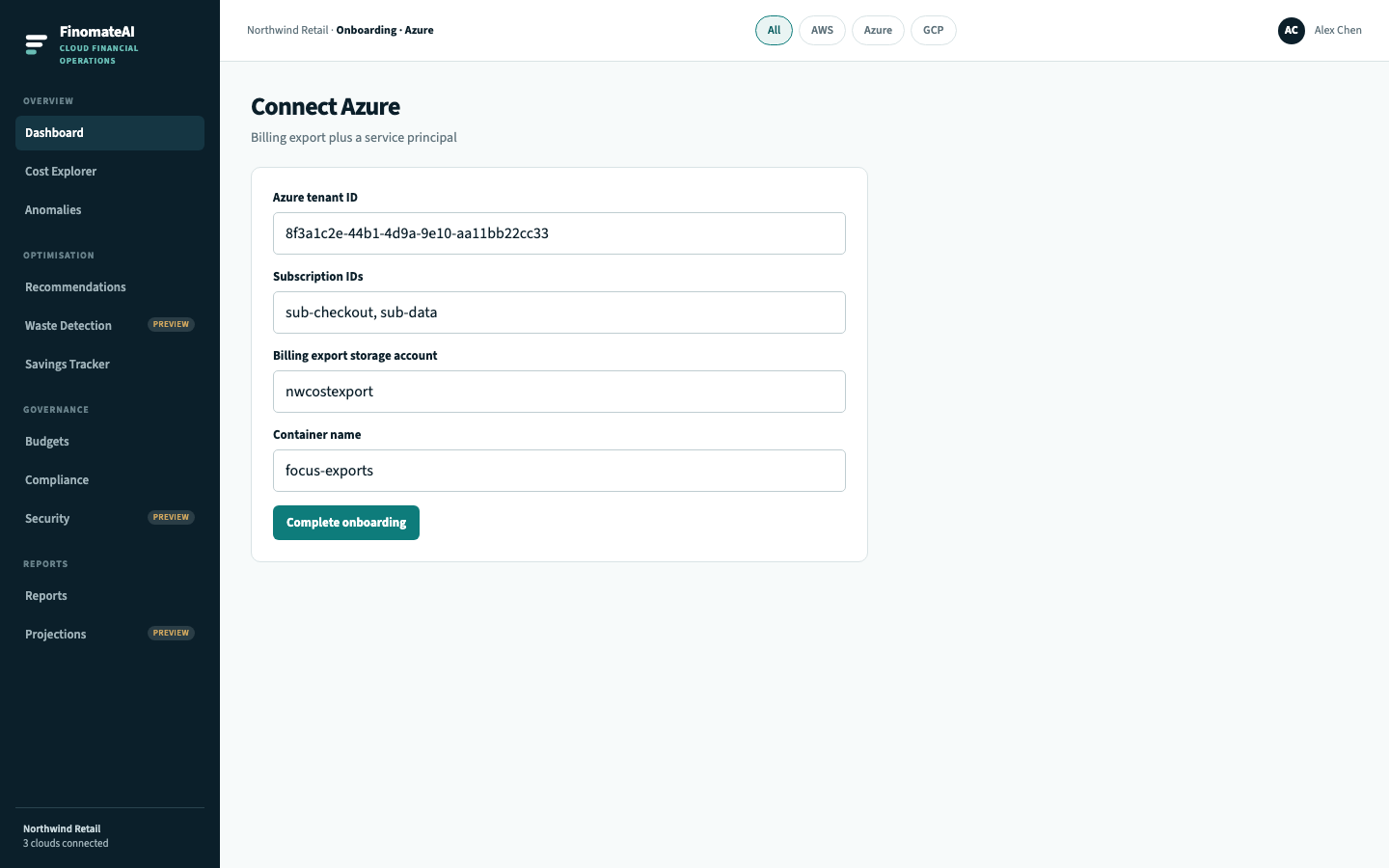
- Open the invite or Complete onboarding flow for your tenant.
- Select the provider.
- Enter the identifiers from the provider-specific guide (role ARN, storage account, dataset, and so on).
- Submit and wait until the connection status is Healthy.
Step 3: Wait for the first import
Allow up to 24 hours after a healthy connection before treating totals as complete. A brand-new export must deliver its first files before FinomateAI can validate cost data.
Recently closed billing periods can still change as the provider posts credits, refunds and adjustments. See Data freshness and reconciliation.
Step 4: Confirm spend is visible
- Open the Dashboard.
- Select the provider you just connected.
- Confirm that monthly spend is non-zero and that expected accounts appear in Cost Explorer.
- Compare a completed period with the provider bill for the same accounts and dates.
Expected result
The connector is healthy, a completed period is explainable against the provider bill, and you can open Cost Explorer on that provider.