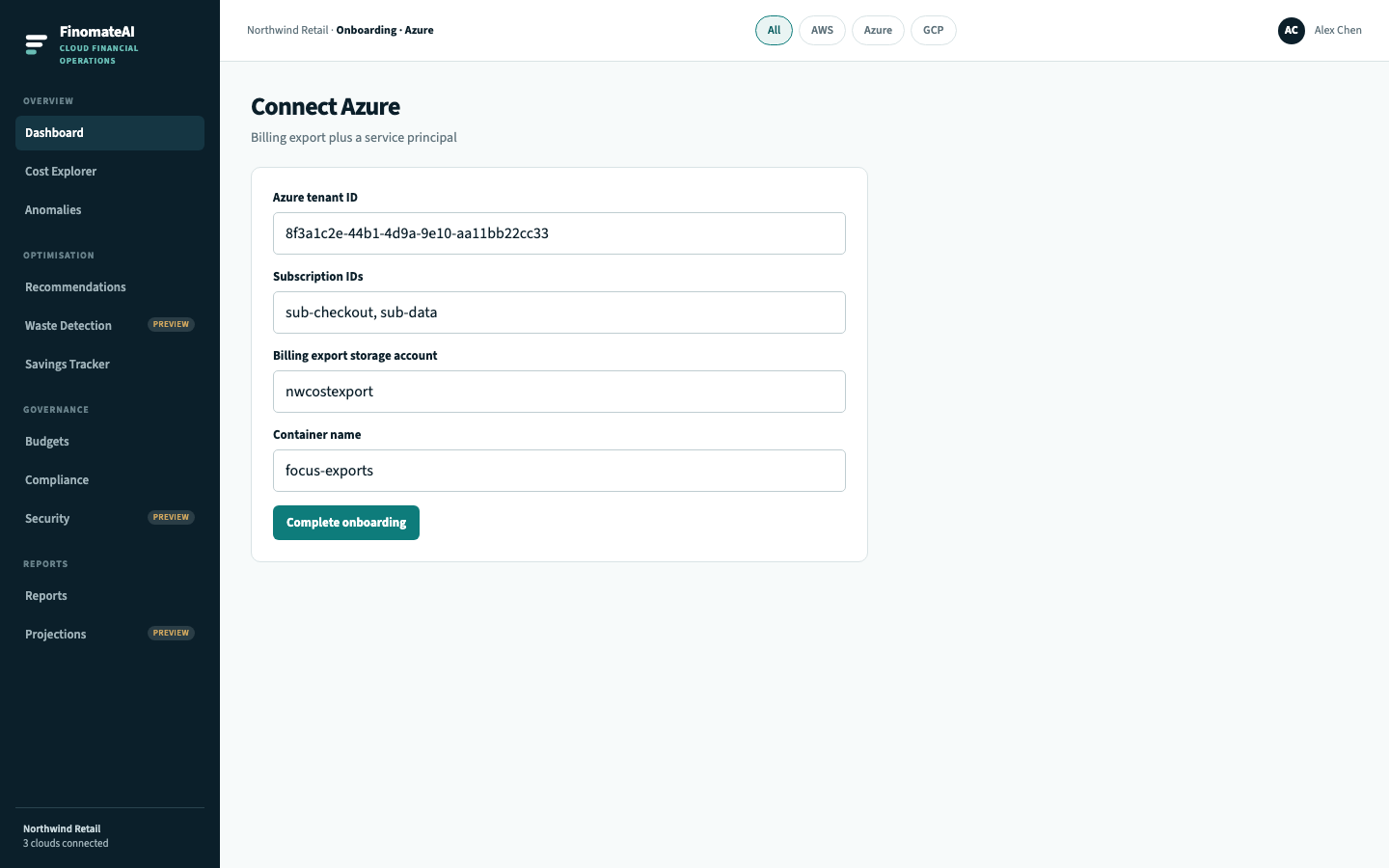
Connect Azure
Connect Azure by pointing FinomateAI at a Cost Management export in a storage account and a Microsoft Entra service principal that can read that export. The principal must not be a subscription Owner.
This is the primary onboarding path. AWS and Google Cloud can be added later.
Before you begin
- Access to the Microsoft Entra tenant that owns the subscriptions
- Permission to create an app registration and assign RBAC
- A Cost Management export writing to a dedicated storage container
- Agreement on billing account type: Microsoft Customer Agreement (MCA) or Enterprise Agreement (EA) — both work if the export includes the subscriptions you care about
What FinomateAI asks for
| Field | Purpose |
|---|---|
| Microsoft Entra tenant ID | Directory (tenant) ID |
| Application (client) ID | App registration |
| Client secret | Service principal secret, stored only in onboarding |
| Subscription IDs | Comma-separated subscriptions in scope |
| Storage account | Account that receives the export |
| Container name | Container for the export |
| Blob prefix | Optional path |
Step 1: Confirm the Cost Management export
In Azure Portal:
- Open Cost Management + Billing → Cost Management → Exports.
- Scope = the billing account or the subscriptions you want in FinomateAI.
- Create an export:
- Metric: Actual cost (add a second amortised export later if you need both)
- Format: CSV or Parquet
- Dataset: FOCUS if your tenant asked for it, otherwise Cost Management actual-cost
- Frequency: daily
- Destination: a dedicated storage account and container (
focus-exportsin the sample)
- Run Export now once and wait until blobs exist.
- Record storage account, container and prefix.
An empty container looks like a permissions failure. Do not complete onboarding until the first file is there.
Recommended destination:
| Setting | Use |
|---|---|
| Storage account | Dedicated, not an application account |
| Redundancy | LRS is enough |
| Firewall | Allow FinomateAI if the account is locked to selected networks |
| Lifecycle | Keep at least 13 months if you want year-on-year Explorer |
Step 2: Create the service principal
- Open Microsoft Entra ID → App registrations → New registration.
- Name it
FinomateReadOnly(or your standard). - Create a client secret. Store it for the onboarding form only — do not paste it into tickets, chat or git.
- Copy Application (client) ID and Directory (tenant) ID.
- Grant RBAC:
- Storage Blob Data Reader on the export container (or account)
- Cost Management Reader on each in-scope subscription (needed for reservation metadata and some API checks)
- Reader on the subscriptions only if Cost Management Reader is not enough in your tenant
- Do not grant Contributor, User Access Administrator, Owner, or any role that can create or resize VMs.
Step 3: Complete onboarding
- In FinomateAI, open Complete onboarding and select Azure.
- Enter tenant ID, application ID, subscription IDs, storage account, container, optional prefix and client secret.
- Select Complete onboarding.
- Wait until Connected accounts shows Healthy.
Step 4: Validate
- Open the Azure Dashboard and select Azure.
- Confirm monthly spend is non-zero.
- Open Azure Cost Explorer on a completed month.
- In Azure Portal, open Cost analysis for the same subscriptions, actual cost, same currency.
- Variance under ~2% after credits and Azure Hybrid Benefit is expected.
Troubleshooting
| Symptom | Check |
|---|---|
| Authentication fails | Tenant ID, application ID, secret value, secret expiry |
| Container empty | Export schedule, first run, prefix |
| 403 on blobs | Blob Data Reader on the right container; storage firewall |
| Subscriptions missing | Form list vs export scope |
| Totals differ | Period, MCA credits, Hybrid Benefit, actual vs amortised |
| Reservations missing | Cost Management Reader on the subscription that owns the reservation order |
If AWS or GCP is healthy and Azure is not, the fault is this connector.
Expected result
FinomateAI can read the approved Azure export, expected subscriptions appear, and a completed period reconciles to Cost Analysis.